
The passkey prompt is real. The call from IT may not be.
Microsoft began asking Microsoft 365 users to set up passkeys on September 1, and its text-message sign-in codes end February 1. Callers posing as IT are using the same words. How to tell the real prompt from the fake call, and what to do before February.
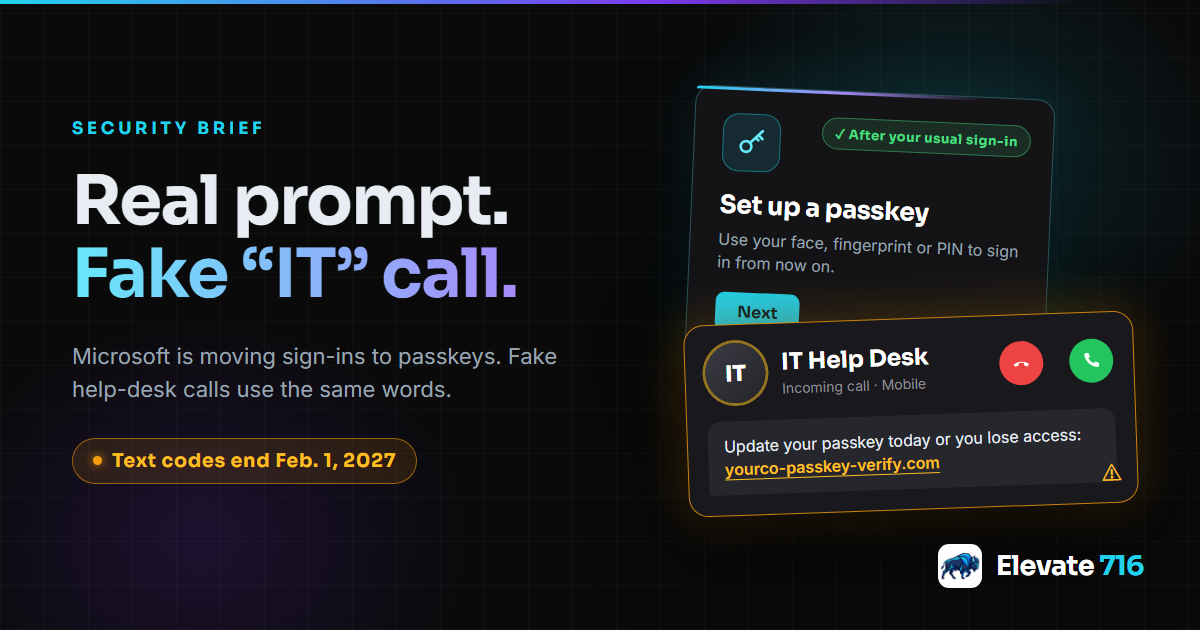
If your business runs on Microsoft 365, a new prompt may be waiting for you: set up a passkey. It is real. On September 1, Microsoft began making passkeys the default way to sign in, and people who get their sign-in codes by text message or phone call are asked to set one up after they sign in, as the change reaches each business. Microsoft's own page has the full timeline.
The same month, Microsoft warned about the fake version. In a September 9 report, its researchers describe callers posing as a company's IT help desk, reaching employees on their personal phones and pressing them to update a passkey or another sign-in setting immediately. BleepingComputer ties the calls to data-theft and extortion crews that have been at it since May.
Put those side by side and the problem is plain. When a real prompt and a fake phone call use the same words in the same month, "that sounds legitimate" stops being a useful test.
How the fake version works
The caller sounds routine and a little rushed: your passkey needs an update today, or you will lose access. Then comes a link to a sign-in page dressed up to look like your company's, or a short code to type into a Microsoft page, sometimes Microsoft's real one. Either way, you complete the sign-in, and the session you just approved belongs to them. From there, Microsoft says, the attackers add a sign-in method of their own so they can come back, map out the account, and quietly download files and email.
The code trick is spreading. On September 22, Microsoft announced it had disrupted EvilTokens, a criminal service that used it to get into more than 12,000 inboxes at more than 10,000 organizations, then had an AI chatbot work out who approves payments and whom to impersonate.
How to tell the real prompt from the fake call
The real prompt shows up on its own, right after you sign in to Microsoft 365 the way you always do. Nobody calls you about it, and nobody sends you a link to it. That gives your team one rule that is easy to remember: a passkey gets set up from Microsoft's own prompt, never because someone called, texted or emailed.
What to do this week
- Tell everyone: IT will never call or text you a link or a code to set up a passkey. If someone does, hang up and call back on a number you already know.
- Set up passkeys only from the prompt after a normal sign-in, or by typing mysignins.microsoft.com/security-info into the browser yourself.
- On that page, remove any sign-in method you do not recognize.
- Never type a code someone else sent you into a Microsoft page.
- If several people share one login, give each person their own. A passkey lives on one person's phone or computer.
- If you manage your Microsoft 365, find who still uses text or call codes, make sure at least two people can manage the account, and turn off "device code" sign-in if nobody in the business uses it.
The date to put on the calendar
February 1, 2027. That is when Microsoft stops sending its own sign-in codes by text and phone call for most users, including the texts people use to reset a forgotten password. Global administrators follow on July 1. Until then, people can skip the prompt; after that, anyone whose only second step is a text or a call has to set up a passkey before they can sign in. Microsoft says nobody gets locked out, but everyone will need a phone, computer or security key that can hold one. Businesses that truly need text codes can keep them through a paid outside provider, while moving to passkeys costs nothing extra.
Moving the team over calmly, on your own schedule, beats a Monday morning where half the office is stuck at a sign-in screen. And warnings about fake calls land better once everyone has done the real thing.
How we help
This is exactly the kind of work we do. We find who in your business still depends on text codes, set everyone up with passkeys on the phones and laptops they already use, lock down who can add or change sign-in methods, and give your staff a one-page guide to how IT will and will not contact them. It also gives you a solid answer, with evidence, to the multi-factor question on your next cyber insurance renewal.
If a call like this has already reached someone on your team, or you would like a second opinion before February, the first conversation is free.